IMAGE2SVG · TRACER MK-I
ReadyTracingDone
OriginalDrag the carriage to compareSVG
Control console
raster to vector, beautifully
Convert supported PNG, JPG, BMP, GIF and WebP images into SVG vector paths. Adjust tracing settings, preview your result and download the SVG.
BEFORE & AFTER
A real example: a PNG drawing of a sea turtle traced into an SVG. Results vary with the image and your tracing settings.
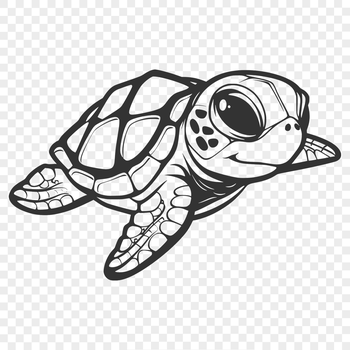
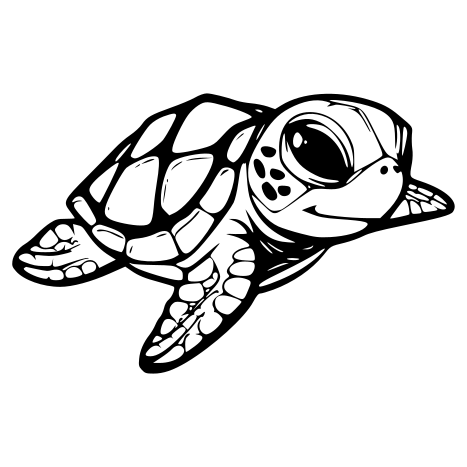
Clear outlines and high contrast trace into smooth, editable vector paths.
USE CASES
Vector paths stay sharp at any size, which makes them useful wherever artwork must scale or be cut, printed or recoloured.
Turn a flat logo into resolution-independent artwork for websites, signage and print.
Create scalable icons that stay sharp on every screen density and can be recoloured with CSS.
Prepare silhouettes for vinyl cutters, laser cutters and plotters that expect vector paths.
Digitise ink drawings and signatures photographed or scanned with good contrast.
Convert high-contrast artwork into clean shapes for stencils and print separations.
Replace heavy PNG illustrations with compact SVG when the artwork is simple enough.
EMBED
After downloading your SVG, copy one of these snippets into your page. Replace the file name and description with your own.
<img
  src="your-image.svg"
  alt="Describe what the image shows"
  width="240"
  height="auto"
  loading="lazy"
/>
Simple and cacheable. Always write meaningful alt text, or an empty alt for purely decorative art.
IMAGE TO VECTOR TOOL
Image2SVG is an online image-to-SVG converter. Upload a supported raster image and the conversion service traces its visible regions into SVG output. The result is useful for suitable logos, icons, symbols and high-contrast illustrations.
The upload interface accepts PNG, JPG/JPEG, BMP, GIF and WebP files. The conversion service processes the uploaded image and returns SVG markup when conversion succeeds.
Simple logos, icons, silhouettes and high-contrast artwork are generally easier to vectorize. Clear edges and limited visual noise help produce more manageable paths.
Photographs, soft gradients, textures and highly detailed images are often better kept as PNG, JPEG or WebP. Tracing may simplify details or create complex paths.